

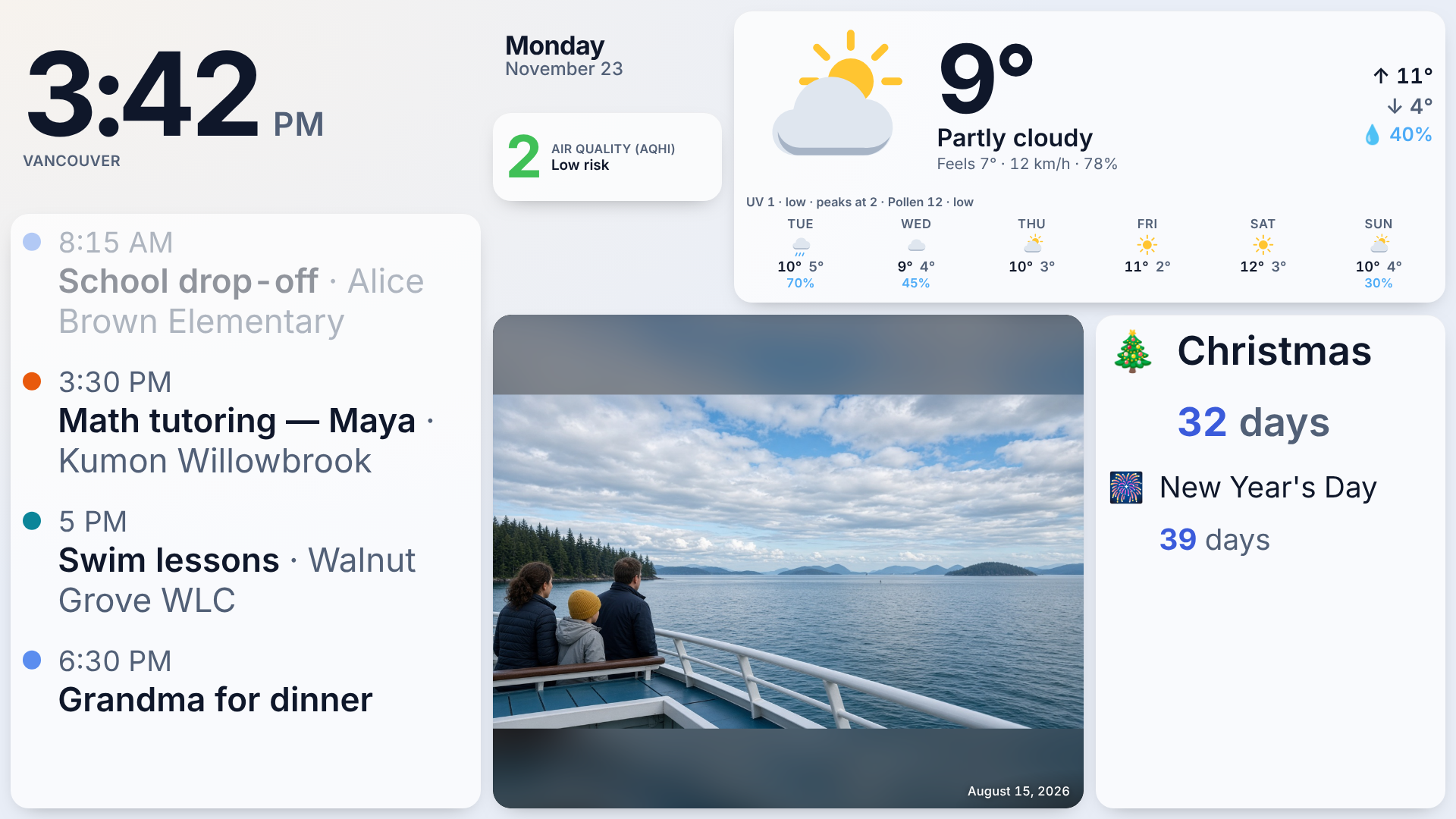
A Raspberry Pi behind a monitor is the classic home-built wall dashboard: silent, cheap to run and small enough to hide. The usual catch is the software. Most Pi dashboard projects mean editing config files, installing modules and fixing them after updates. This guide keeps the Pi part to the minimum (boot straight into a full-screen browser) and does the dashboard itself in Everydaypane, so the layout, calendars and photos are set from your phone.
What You Need
- A Raspberry Pi 4 or 5 with its power supply. A Pi 5 is smoother with photos and animated widgets; a Pi 4 with 2 GB or more is fine for most walls.
- A monitor and the right HDMI cable (micro-HDMI on the Pi 4 and 5). A 1920 × 1080 landscape screen matches the default layout. A touch screen lets the family tick off chores and shopping, but isn't required.
- A microSD card with Raspberry Pi OS (with desktop), written with Raspberry Pi Imager. Set the Wi-Fi and a user name in the Imager so the first boot is already online.
- A free Everydaypane account.
1. Make the Pi Open the Dashboard on Boot
Recent Raspberry Pi OS uses the labwc desktop. To start Chromium full screen when the Pi boots, add one line to labwc's autostart file. Open a terminal on the Pi and run mkdir -p ~/.config/labwc and then edit ~/.config/labwc/autostart with this line:
chromium --kiosk --noerrdialogs --disable-infobars https://www.everydaypane.com/display/ &
On older Raspberry Pi OS releases the browser is called chromium-browser, so use that name if chromium isn't found. Reboot and the Pi should come up straight into the dashboard's unlock screen.
2. Stop the Screen From Blanking
Raspberry Pi OS turns the screen off after ten minutes by default, which is the opposite of what a wall wants. Run sudo raspi-config, open Display Options, and switch Screen Blanking off. Everydaypane does its own night-time dimming, so you don't lose anything.
3. Unlock It With Your Phone
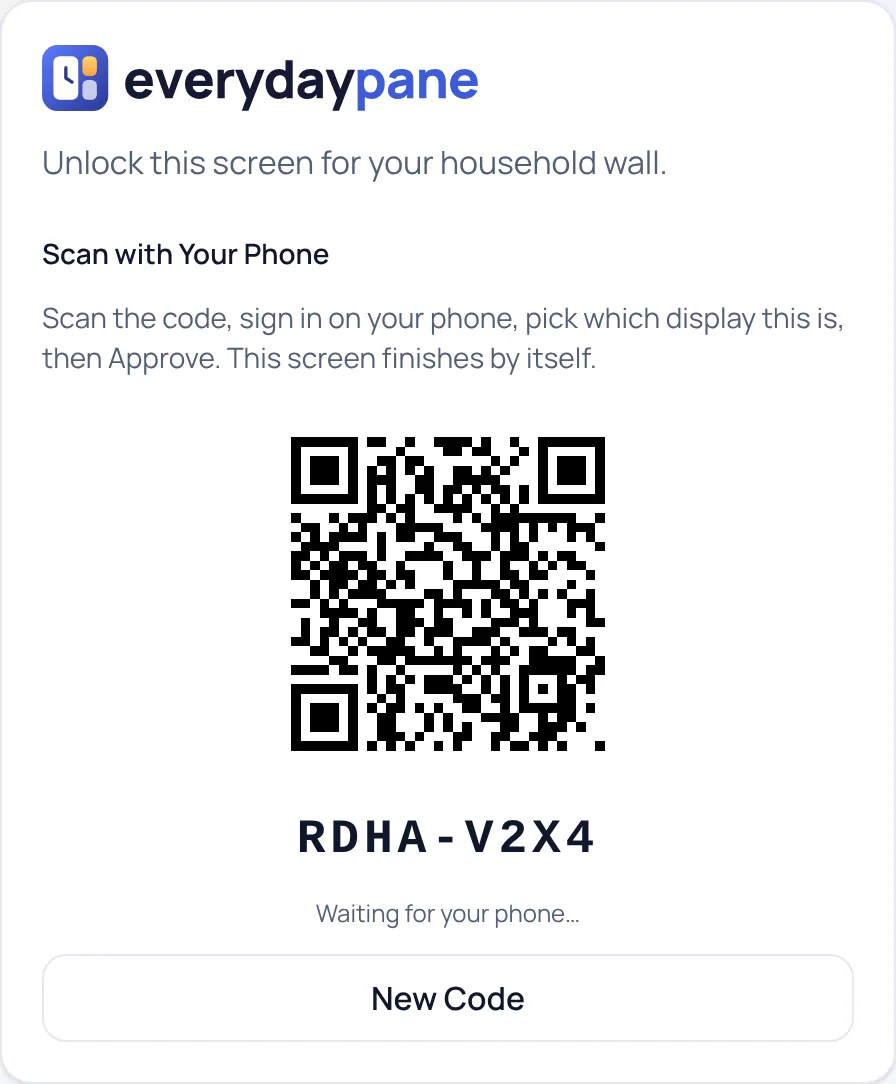
The Pi doesn't need a keyboard for this. The unlock screen shows a QR code and an eight-character code. Scan it with your phone, sign in, pick the display and tap Approve. The Pi stays signed in through reboots and power cuts, until you choose New link or delete the display.
4. Build the Layout From Your Phone or Laptop
Pick a starter template in the household panel's Views tab, then drag and resize tiles on a live copy of the wall. Kitchen Glance (above) is a good first one: the clock, the weather, today's schedule, a photo and countdowns. Connect Google Calendar or Microsoft 365 in Settings › Calendars and the wall picks it up within seconds.
Why It Holds Up on a Pi
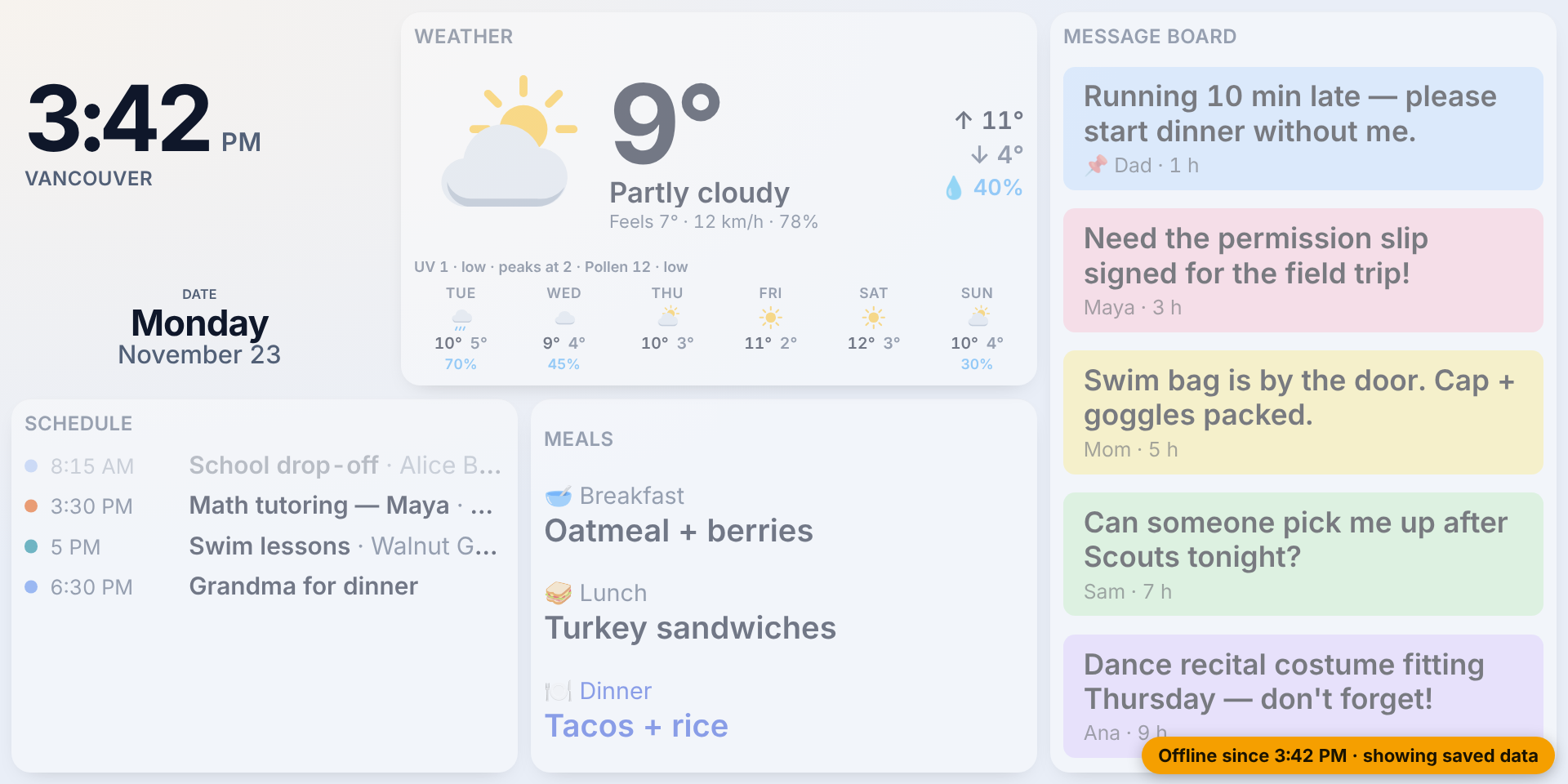
The wall page isn't a heavy web app. It's plain HTML and one small script, and every call to Google, the weather or the bus company happens on Everydaypane's servers, which send the screen small, trimmed updates. That keeps a Pi cool and responsive for months. If the Wi-Fi drops, the wall keeps showing the last good data with a small "Offline" note, and burn-in protection shifts it a few pixels so a monitor left on for years doesn't ghost.
At Night
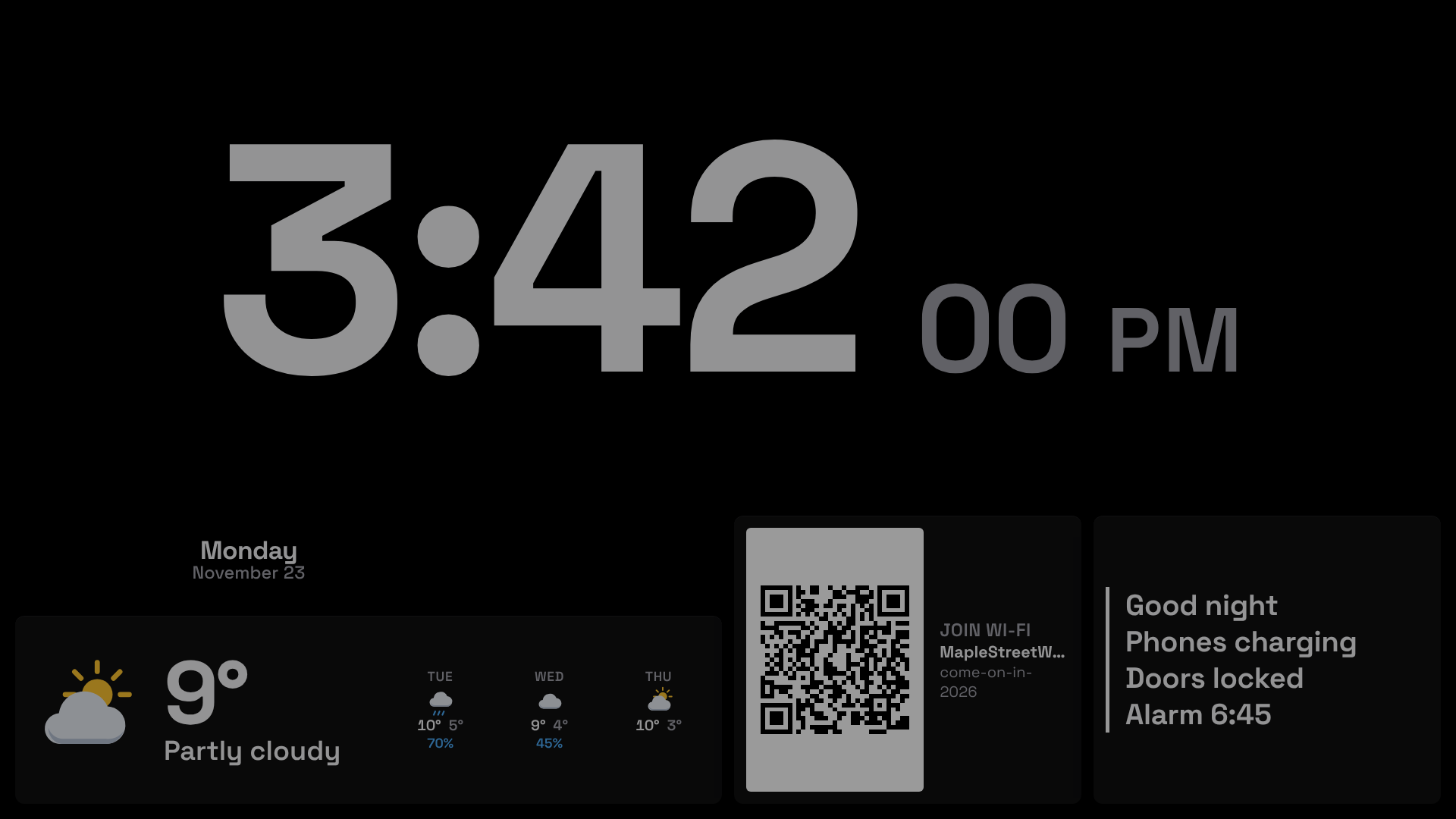
A browser can't switch a monitor's backlight off, so the screen saver's dark mode is a black screen, which on most panels is close enough. Overnight, a night clock view is a softer option: big dim numbers you can read from the hallway.
Tip. Comfortable on the command line? wlr-randr can switch the HDMI output off and on from a timer, which saves a little power overnight. It's optional, and the dashboard works the same without it.
Free or Household
Free covers a Pi wall with one layout, two calendars, photos, the weather and countdowns. Household adds the rest: meals, shopping, chores, transit, smart-home tiles, views that change through the day and the screen saver.
Ready to try it? Start Free on Everydaypane.