

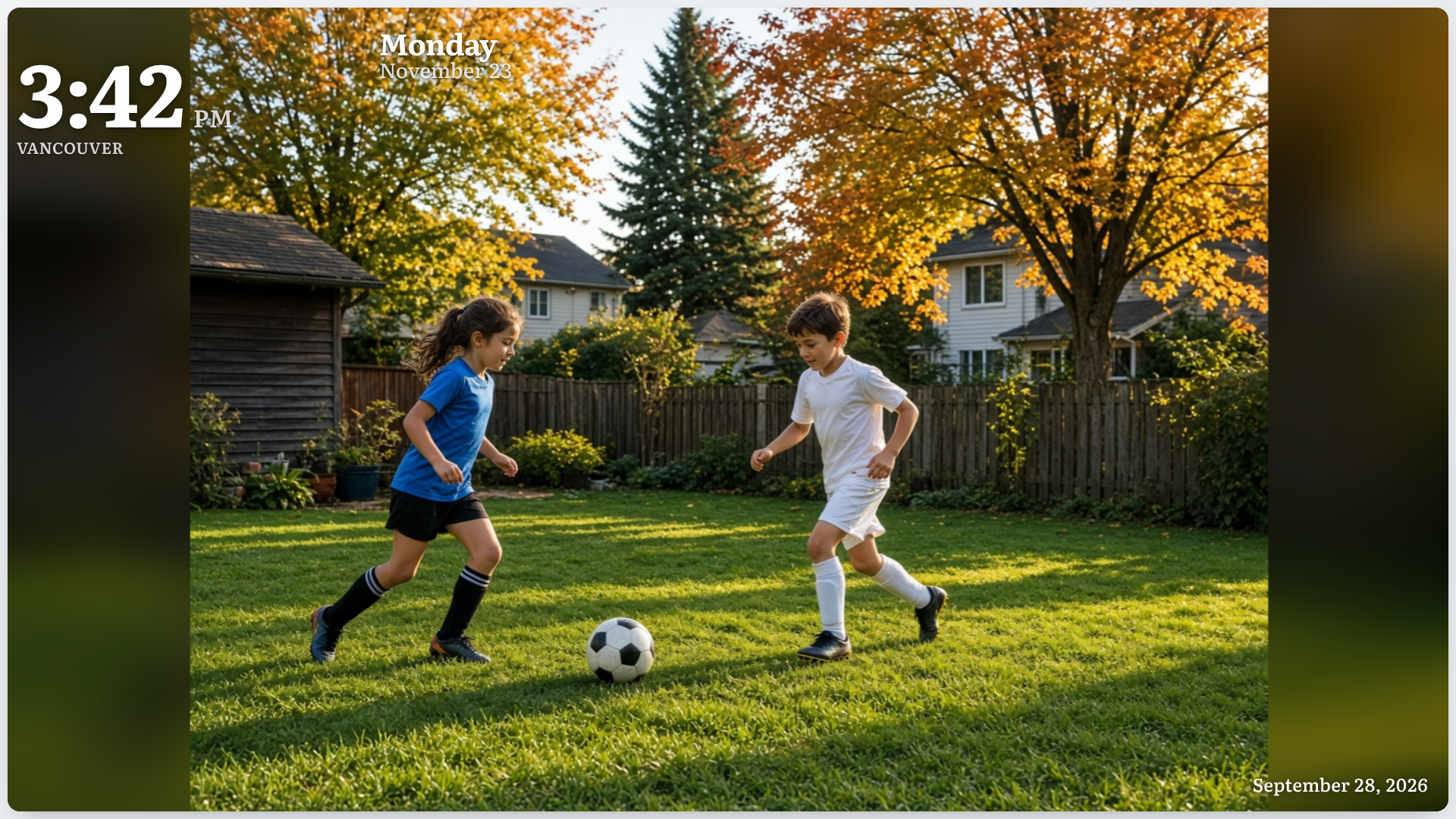
The best gift for grandparents who live a ferry ride or a flight away is often the simplest: a screen in their living room that keeps showing new pictures of the grandkids. The hard part with most frames is everything after the box is opened. Someone has to set up an app, an email address or an account, and then the photos stop coming. This guide sets up a frame that the rest of the family keeps full, and that Grandma never has to touch.
What You Need
- A screen with a browser. An old iPad, an Android or Fire tablet, or a spare monitor with a small computer. A tablet on a stand next to their chair works well.
- Wi-Fi at their house, and the screen plugged in all the time.
- An Everydaypane account that you manage. The frame is one of your household's displays, so you can fix anything from your own phone.
Make the Frame Look Like a Frame
Start from the Photo Frame starter template: one full-screen photos widget with a small clock. Photo frame settings matter more than people expect. Smart fit fills the screen unless that would cut off heads, and then shows the whole photo over a soft, blurred copy of itself instead of black bars. Portrait pairs puts two phone photos side by side. Drift adds a slow, gentle zoom so it doesn't look like a slide show.


Let Everyone Add Photos
Make a photo library album in Settings › Photos and leave Family can add photos on. Each display has a phone edit link (the Displays tab shows it, with a QR code). Anyone who opens it can add photos from their phone's camera roll, with no account and no app. A photo someone just added comes up next on the frame, captioned "Just added", and whoever added it can take it back with Undo.
Tip. Treat the edit link like a house key: share it with your siblings in a family chat, not on social media. If it ever gets out, New link in the Displays tab replaces it.
Pick How Fast Photos Change
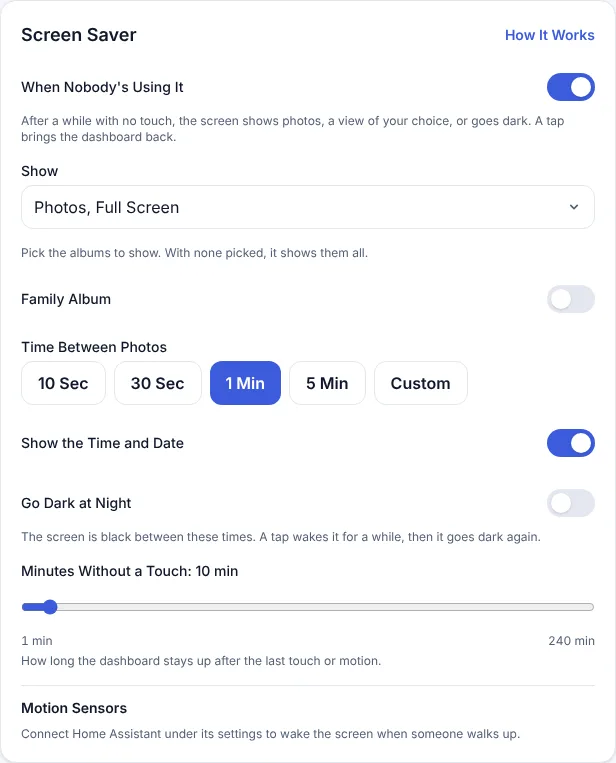
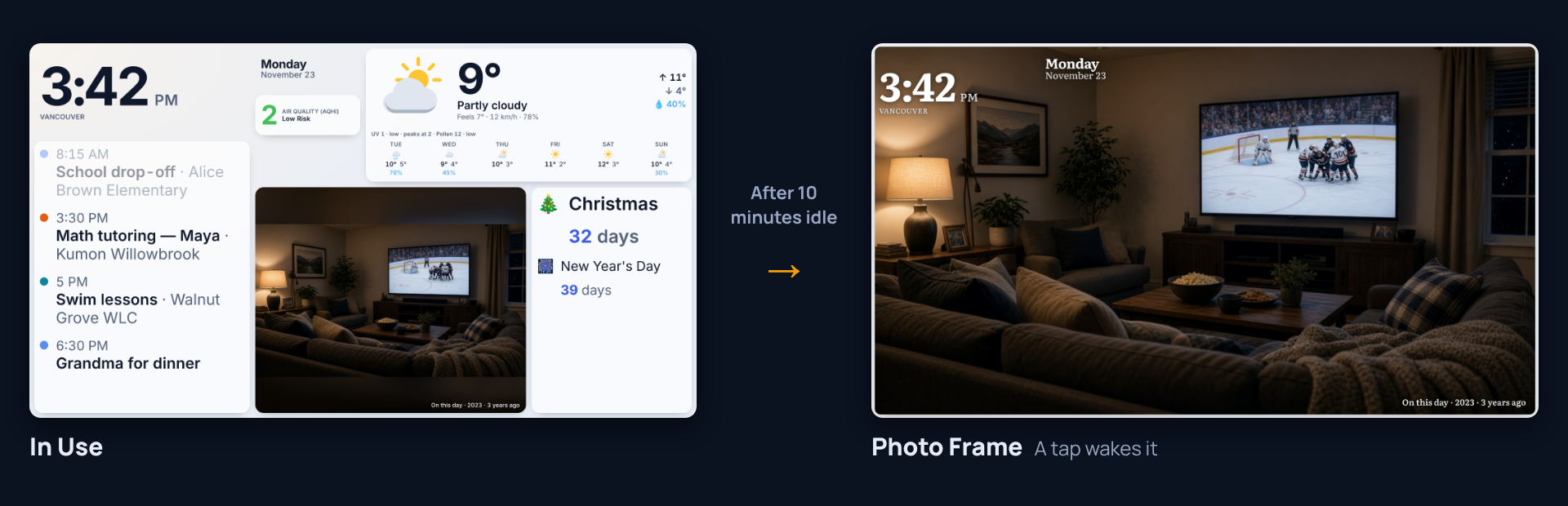
Grandparents tend to like a slower frame than kids do. Time Between Photos can be 10 seconds, 30 seconds, a minute, five minutes or anything in between. A minute is the default. On the Household plan you can also make the frame the screen saver of a busier wall, so it turns into photos when nobody's using it.
Set It Up Once, From Your Phone
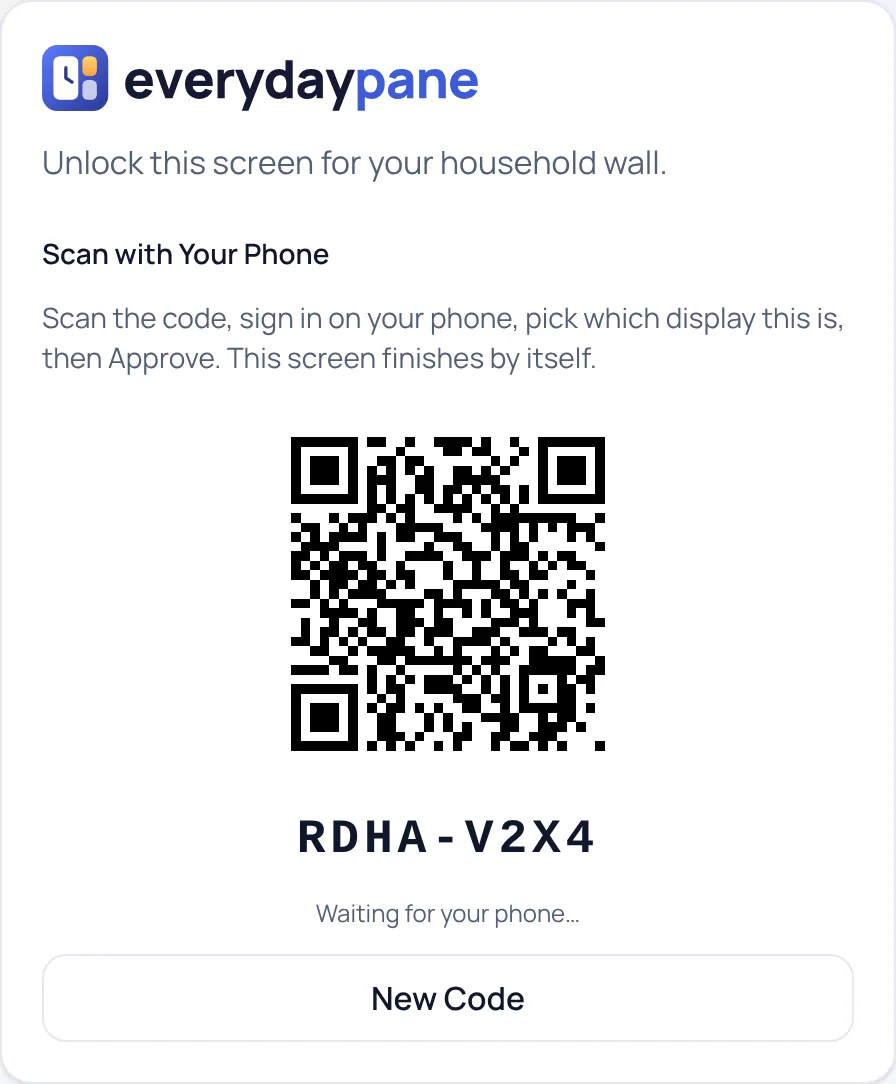
Open everydaypane.com/display/ in the tablet's browser. It shows a QR code and an eight-character code. Scan it with your phone, pick the display and tap Approve. That's the only time anyone needs to touch the screen: it stays signed in, and every change you make later reaches it on its own.
Night Mode, So It's Not a Night Light
A bright screen in a dark living room is not a gift. The screen saver can go dark in a night window, say 10 PM to 7 AM, and wake with a tap. Burn-in protection moves the clock a few pixels every minute, so an always-on tablet lasts.
Free or Household
Photos, the clock and two displays are on the Free plan, so a frame with your own uploads or a Google Photos pick costs nothing if it's your household's only layout. A separate layout for your kitchen and for Grandma's frame, the screen saver and its night window are part of Household.
Ready to try it? Start Free on Everydaypane.